003: Cursor
Description
This example shows the three types of cursors available. Use the left and right arrows, or their equivalents on a joystick, to change menus.
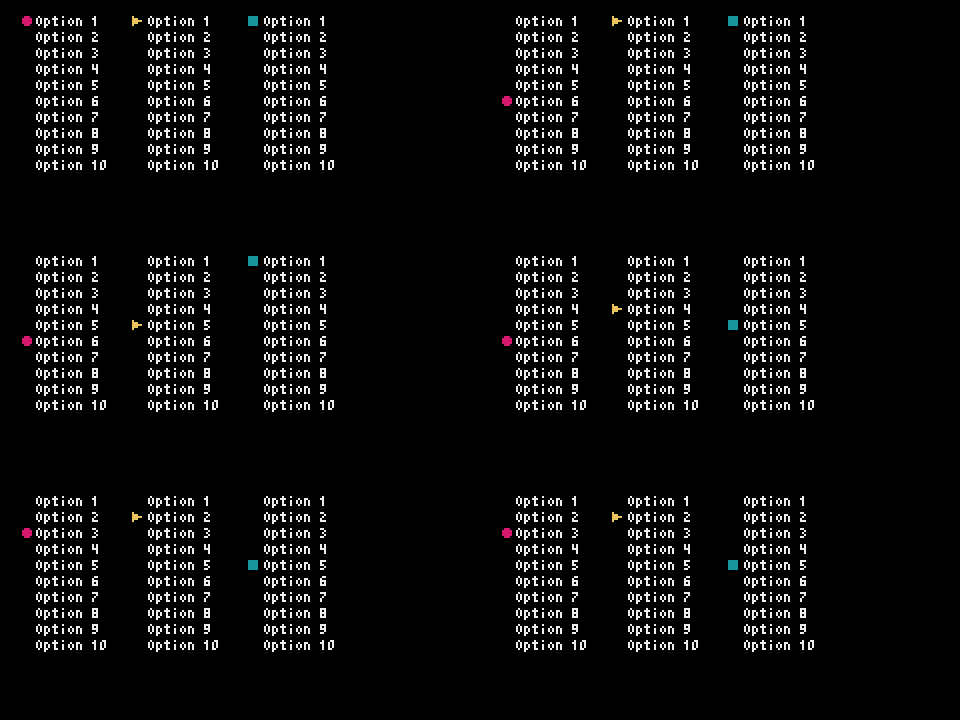
Code
# This example shows the use of the methods for changing cursor colors and options.

import pyxel
from pyxel_menu import PyxelMenu


class Example:
    def __init__(self):
        self.current_text = ''
        self.current_pos = ''
        menu_options = []
        self.menu_in_use = 1

        for i in range(1, 21):
            menu_options.append(f'Option {i}')

        self.menu = PyxelMenu(8, 8, menu_options, 10)
        self.menu.set_cursor(color=8)

        self.menu2 = PyxelMenu(64, 8, menu_options, 10)
        self.menu2.set_cursor(cursor_type='triangle', color=10)

        self.menu3 = PyxelMenu(122, 8, menu_options, 10)
        self.menu3.set_cursor(cursor_type='square', color=3)

        pyxel.init(240, 120, title='PyxelMenu Example 003')

        pyxel.run(self.update, self.draw)

    def update(self):
        if (
            pyxel.btnp(pyxel.KEY_UP) or
            pyxel.btnp(pyxel.GAMEPAD1_BUTTON_DPAD_UP)
        ):
            if self.menu_in_use == 1:
                self.menu.move_up()
            elif self.menu_in_use == 2:
                self.menu2.move_up()
            elif self.menu_in_use == 3:
                self.menu3.move_up()
        elif (
            pyxel.btnp(pyxel.KEY_DOWN) or
            pyxel.btnp(pyxel.GAMEPAD1_BUTTON_DPAD_DOWN)
        ):
            if self.menu_in_use == 1:
                self.menu.move_down()
            elif self.menu_in_use == 2:
                self.menu2.move_down()
            elif self.menu_in_use == 3:
                self.menu3.move_down()
        elif (
            (pyxel.btnp(pyxel.KEY_LEFT) or
            pyxel.btnp(pyxel.GAMEPAD1_BUTTON_DPAD_LEFT)) and
            self.menu_in_use > 1
        ):
            self.menu_in_use -= 1
        elif (
            (pyxel.btnp(pyxel.KEY_RIGHT) or
            pyxel.btnp(pyxel.GAMEPAD1_BUTTON_DPAD_RIGHT)) and
            self.menu_in_use < 3
        ):
            self.menu_in_use += 1

    def draw(self):
        pyxel.cls(0)
        self.menu.draw()
        self.menu2.draw()
        self.menu3.draw()


if __name__ == '__main__':
    example = Example()